Custom Events
Pasilobus Google Analytics allows users to create custom events for Google Analytics without any coding experience. With this feature, users can track specific actions on their website or application and gain insights into user behavior.
Custom events can be created by defining an event category, action, and label. These can be tailored to fit the needs of the user and can be easily added to any page or application using the Pasilobus Google Analytics plugin.
Please note that custom event generator is only available in the Premium plan of Pasilobus Google Analytics. Upgrade your plan to unlock this feature.
What type of events can you track?
Currently you can create custom events for one of the following actions:
- page visits
- clicks
- form submissions
page visits
To create a custom event for page visits, you will need to define a URL. When a visitor lands on the page that is defined in the URL, the Pasilobus Google Analytics app will send the custom event signal to Google Analytics. This allows you to track specific page visits and gain insights into user behavior on your website or application.
clicks
To create a custom event for clicks, you will need to define a button or link using class or ID values. When a visitor clicks on the defined button or link, the Pasilobus Google Analytics app will send the custom event signal to Google Analytics. You can also filter the event with a URL, meaning that the app will only define a click event when the click happens on a particular page. This allows you to track specific clicks and gain insights into user behavior on your website or application.
form submissions
To create a custom event for form submissions, you will need to define a form using class or ID values. When a visitor submits the defined form, the Pasilobus Google Analytics app will send the custom event signal to Google Analytics. You can also filter the event with a URL, meaning that the app will only define a form submission event when the form is submitted on a particular page. This allows you to track specific form submissions and gain insights into user behavior on your website or application.
How to create a custom event?
To create a custom event in Pasilobus Google Analytics, follow these steps:
Go to the Pasilobus Google Analytics app dashboard.
Click on "Custom events".
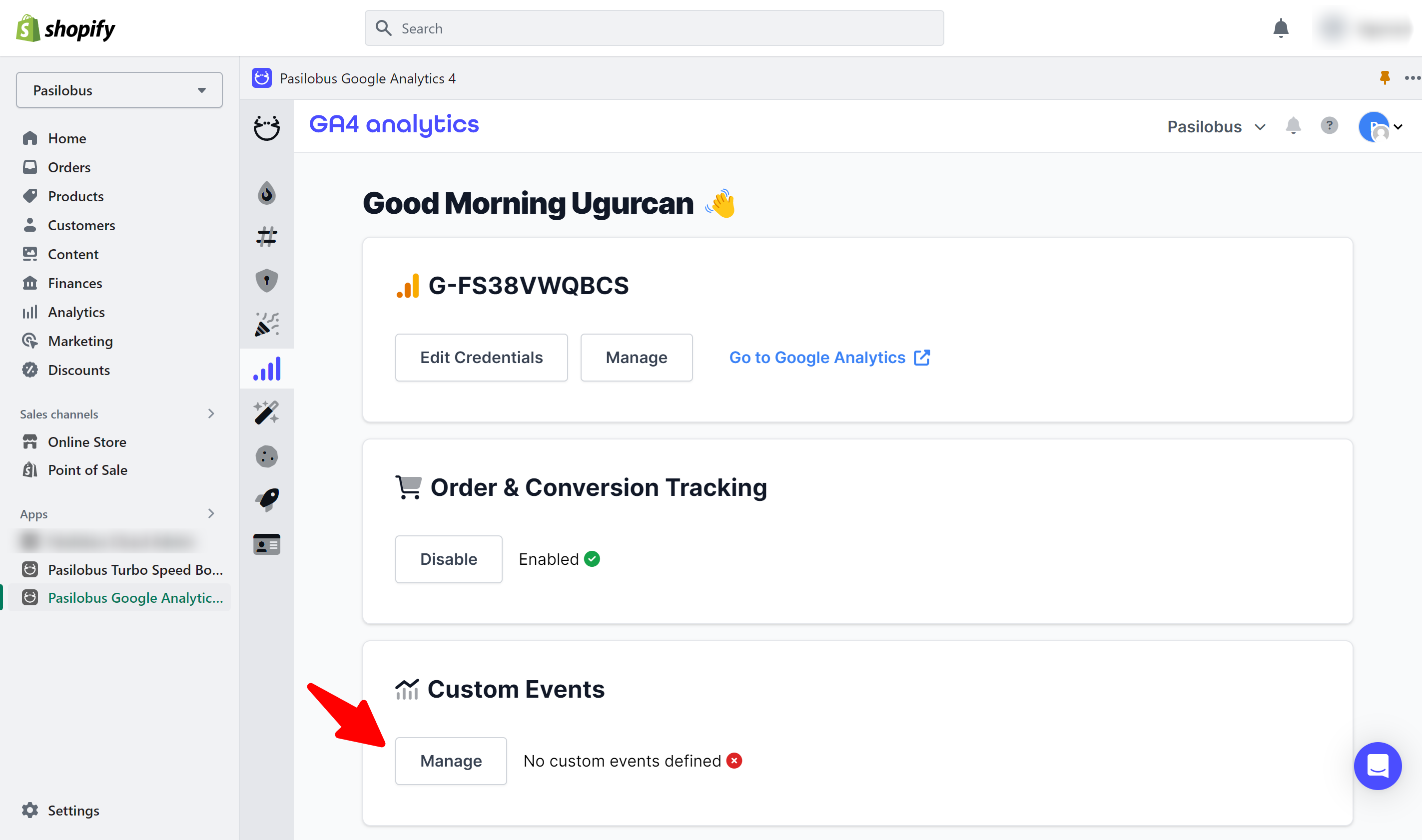
Select an event category, action, and label.
Customize the event parameters to fit your needs.
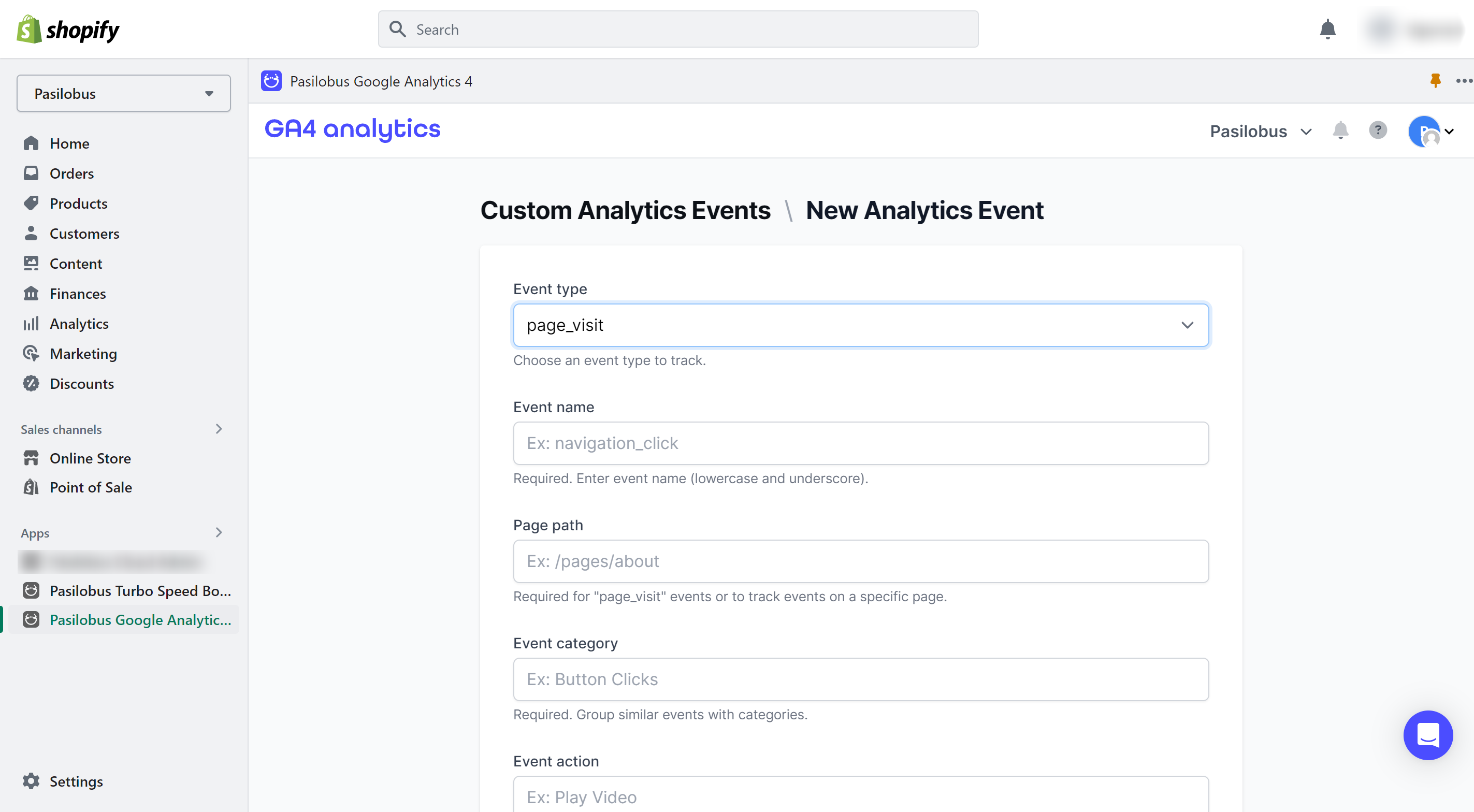
## Event Parameters


In Google Analytics, when tracking an event, you must specify an "event category", "event action", and "event label" parameters.


- The "event category" is a broad categorization of the event, such as "button click" or "form submission".
- The "event action" is a specific description of the event, such as "add to cart" or "submit form".
- The "event label" is an optional parameter that provides additional context or information about the event, such as the specific button or form that triggered the event. These parameters allow you to organize and analyze your event data in a meaningful way.